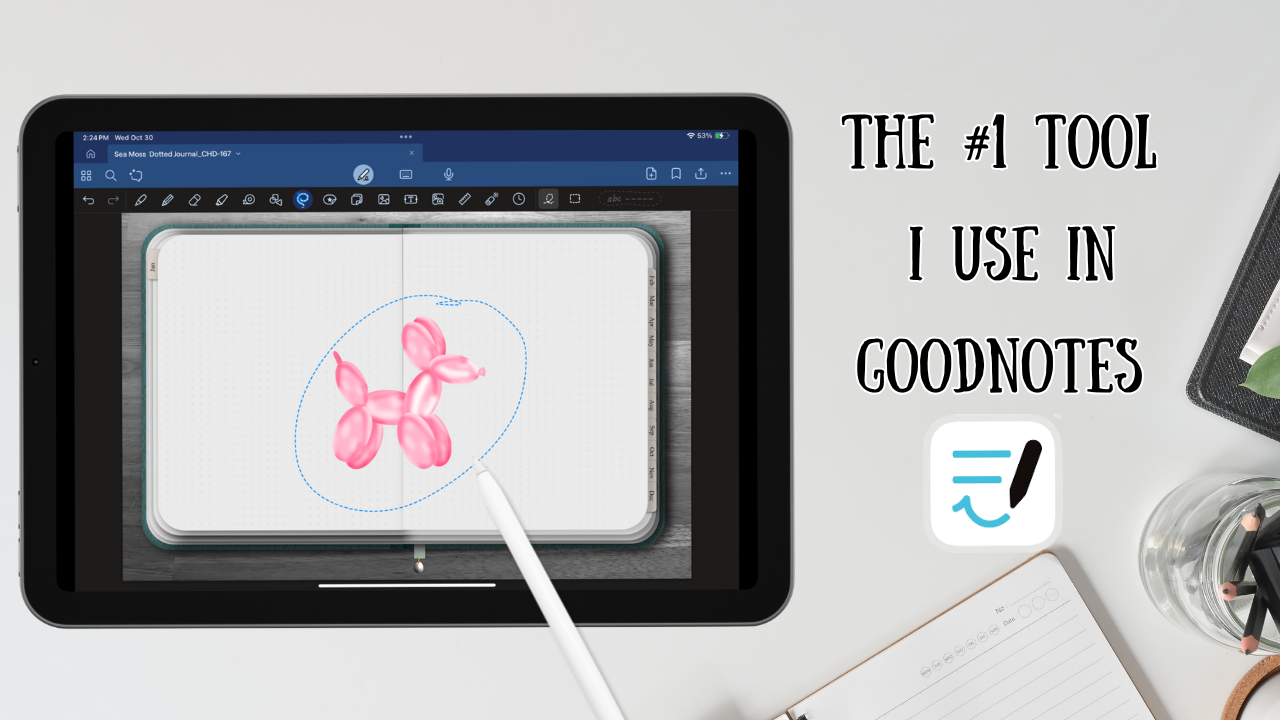
The lasso tool is the most versatile tool and my most used tool in Goodnotes.
Note: This tutorial is done in Goodnotes 6. The lasso tool has similar features as in Goodnotes 5 but the layout is slightly different.
Highlights
Easily edit stickers
Move stickers and texts
Copy/ duplicate/ paste elements
Resize and re-color text
Open and use the contextual menu
How to use Lasso tool:
The lasso tool can be accessed by clicking the pen tool at the top. The tool bar will then be visible and you can add things to the PDF in Goodnotes.


Adjusting Lasso Tool settings:
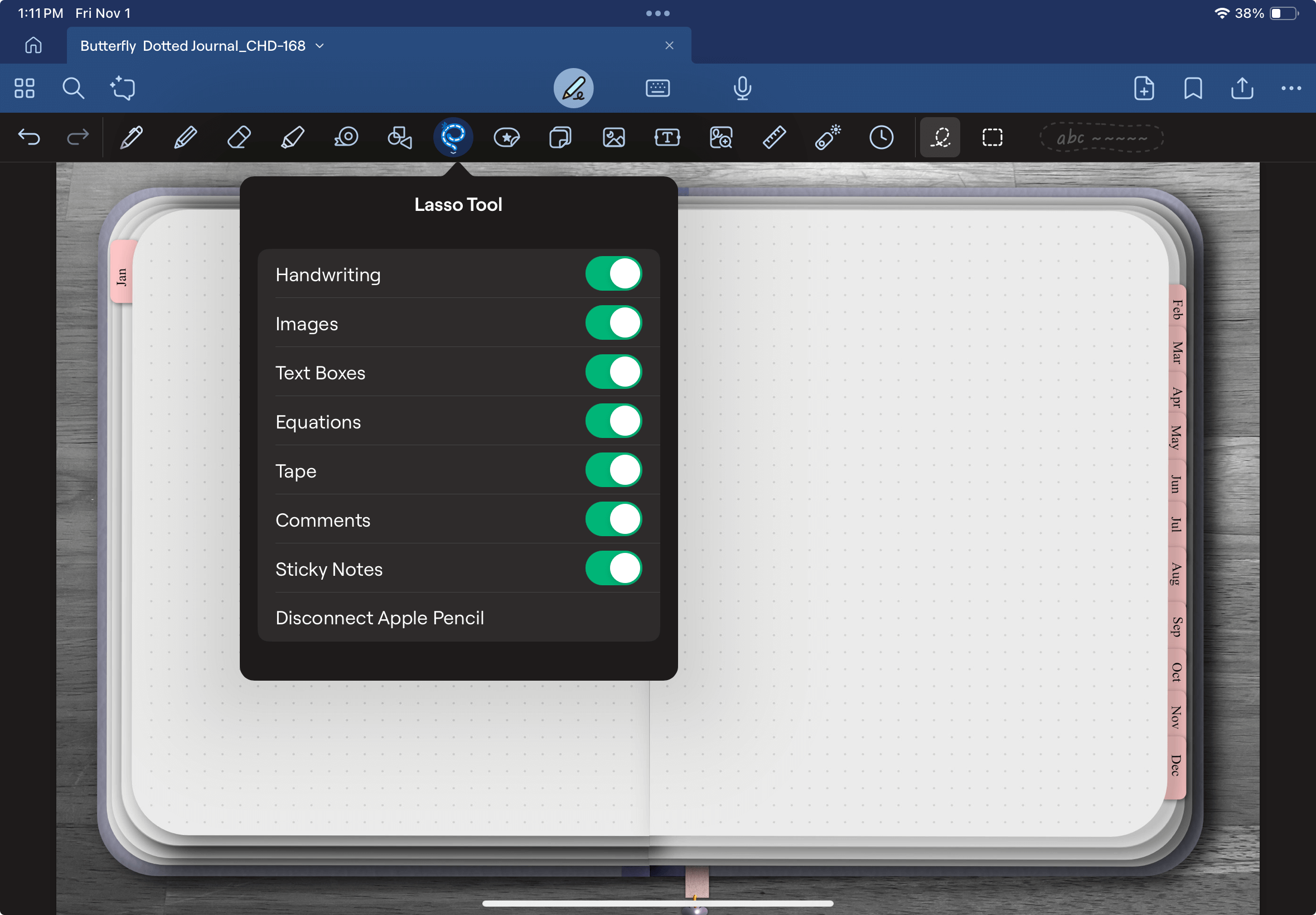
You can turn off and on a number of settings that the lasso tool can do. To edit the settings. Double click the Lasso tool in the tool bar and the settings will pop up.
Move text and stickers:
Circle the sticker or text you want to move with your lasso tool. Next you can move it to where ever you’d like on the page.
Note: At this time Goodnotes doesn’t support moving selected elements with a lasso tool to another page/section. In order to do that I recommend copying and pasting it to the desired page or adding it as an element and then pasting to desired page.

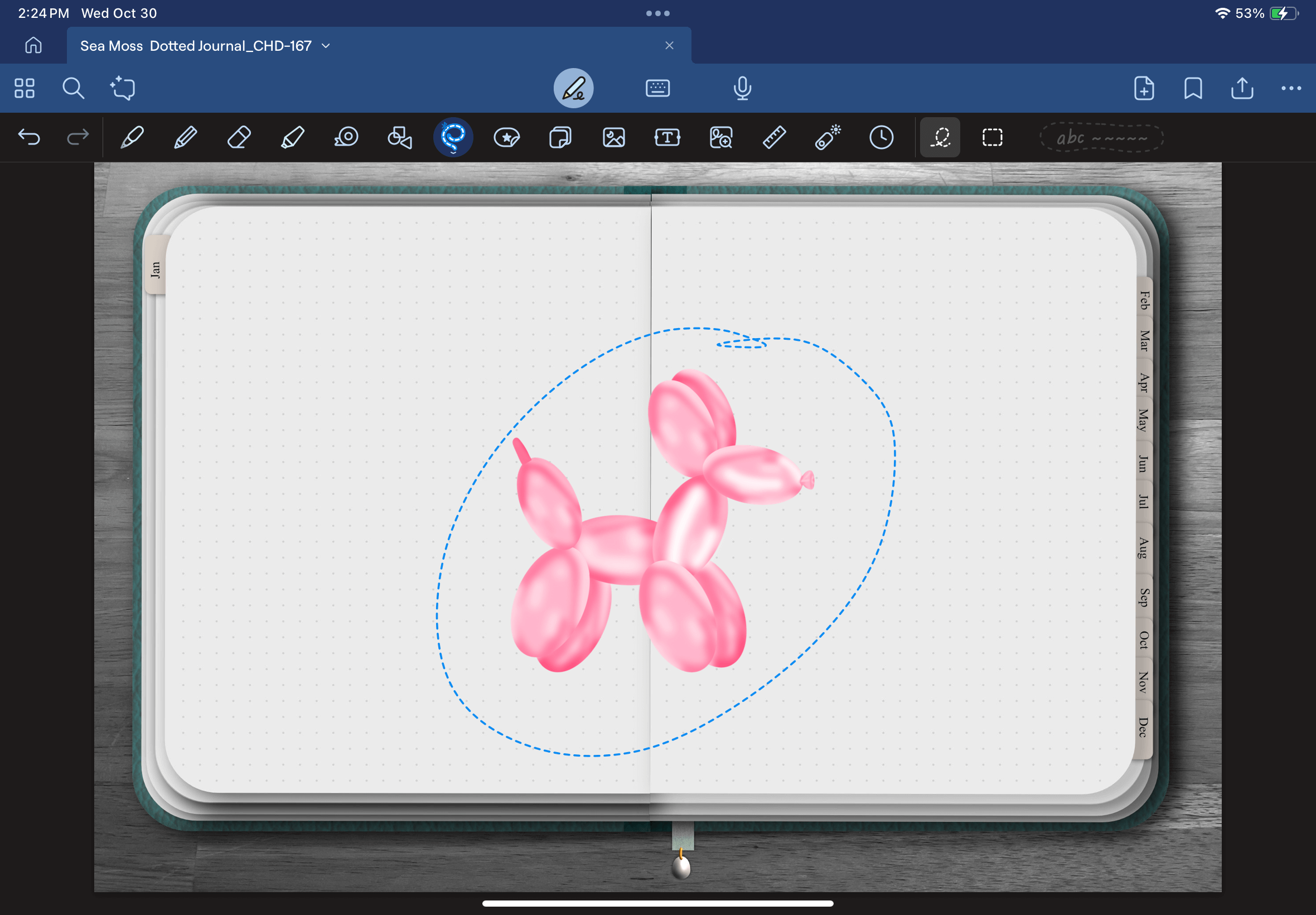
Use the contextual menu:
To use the contextual menu circle the desired element you want to edit with the lasso tool and click on the selected section.
The contextual menu will populate where you can:
Ask Goodnotes:This is Goonotes A.I tool where you can have it generate questions, reword paragraphs & translate.
Resize:Resize of rotate the selected asset
Cut:Cut the content
Copy: Copy content, so you can paste it elsewhere
Duplicate: Duplicates the content on the same page
Trash: Deletes content
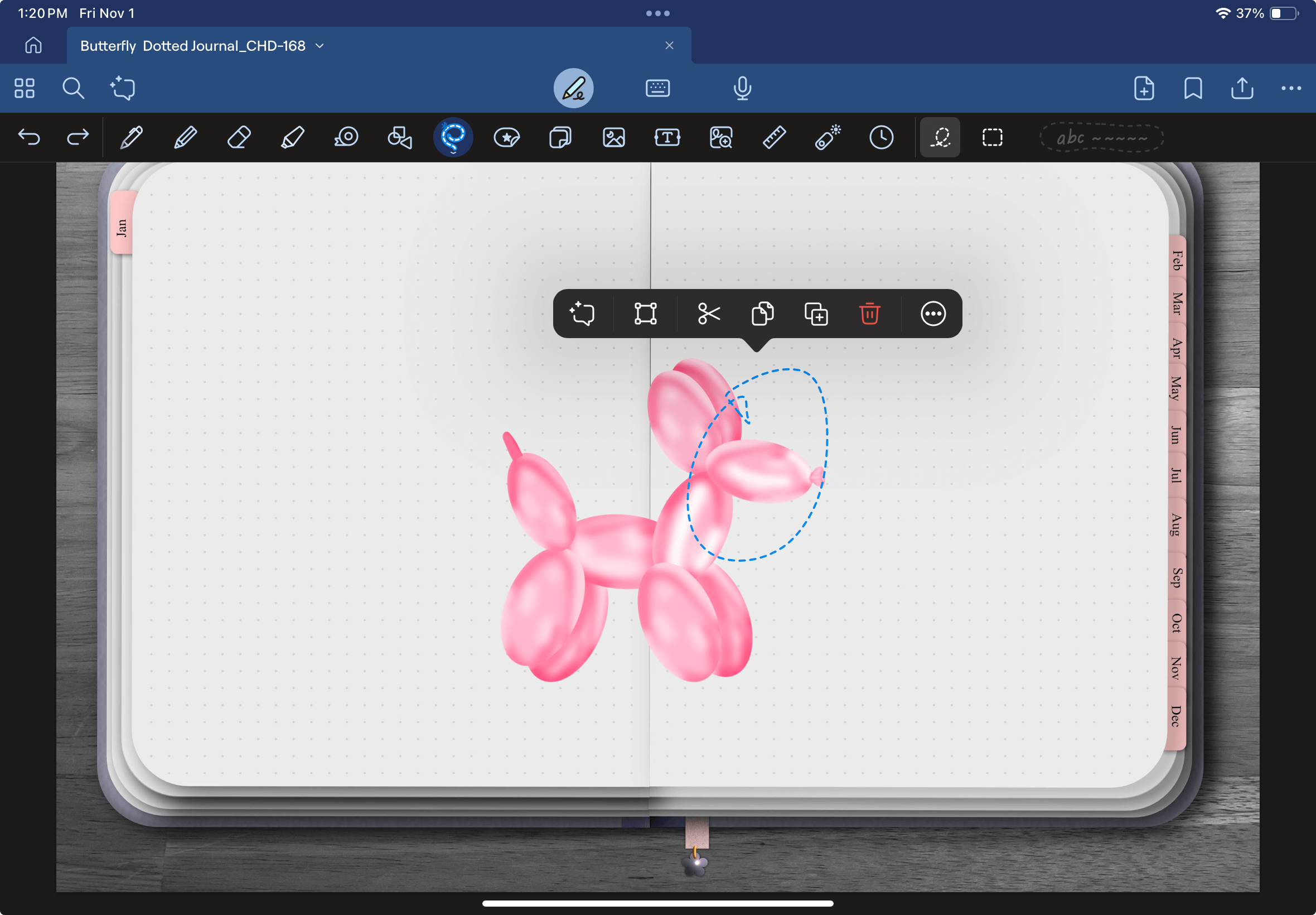
Clicking the 3 dots will open a larger portion of the menu:
Bring element to Front: Allows you to arrange certain elements to the front, ideal for monthly spreads.
Bring element to back: Allows you to arrange certain elements to the back, perfect for vison board.
Ask Goodnotes: This is Goonotes A.I tool where you can have it generate questions, reword paragraphs & translate.
Resize: Resize of rotate the selected asset
Take Screenshot: Take a screensht of the portion you circled
Add Element: Lets you save content to use across your planner. Learn how to save reusable layouts with the Goodnotes Elements tool, here

Conclusion
The real power of the Goodnotes Lasso Tool is how quickly it transforms a blank digital page into a highly personalized, functional workspace. Instead of feeling restricted by fixed templates, you can shift, resize, and layer elements to design a setup that actually matches your daily workflow.
Practice Your Skills with the Birthday Digital Stickers Sheet
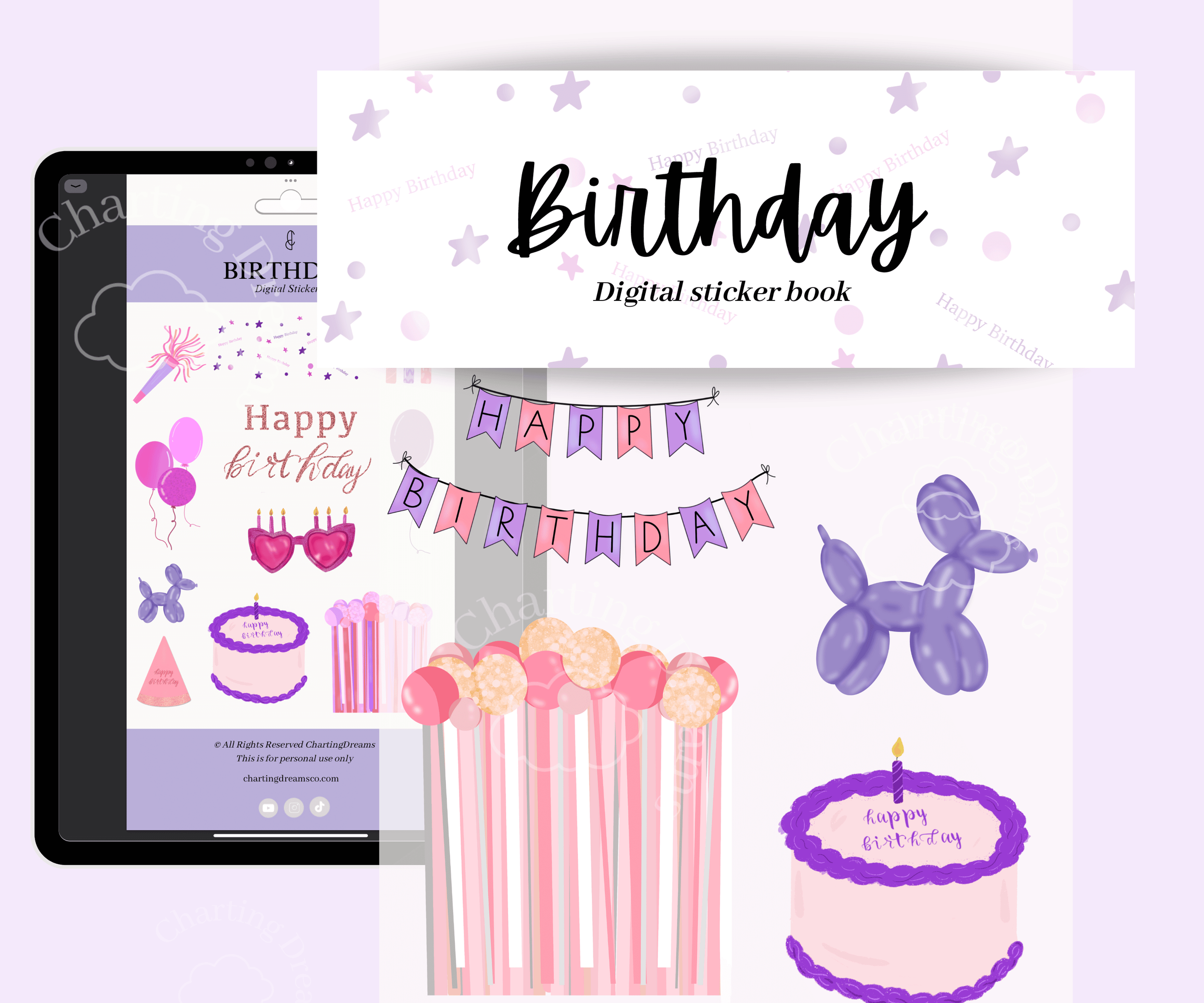
The absolute best way to master the Lasso tool's "Bring to Front" and "Resize" features is by layering decorative elements. Grab our Birthday Digital Stickers Sheet to start effortlessly arranging party countdowns, memory scrapbooks, and event alerts in your favorite planner.
Ready to put your new Lasso tool skills to the test? Explore these step-by-step guides to maximize your digital workspace:
Design Seamless Navigation: Learn how to build an interconnected notebook with our guide on How to Add Hyperlinks to Any Goodnotes Document.
Perfect Your Palette: Create a cohesive theme across your pages by learning How to Match Pen Colors in Goodnotes.
Double Your Productivity: Study reference materials and journal at the same time using How to Use Split Screen in Goodnotes.
What the video tutorial here:

Make birthday memories more fun and organized with themed journal pages for celebrations and events. Perfect for party planning, birthday countdowns, memory keeping, and celebration scrapbooks.