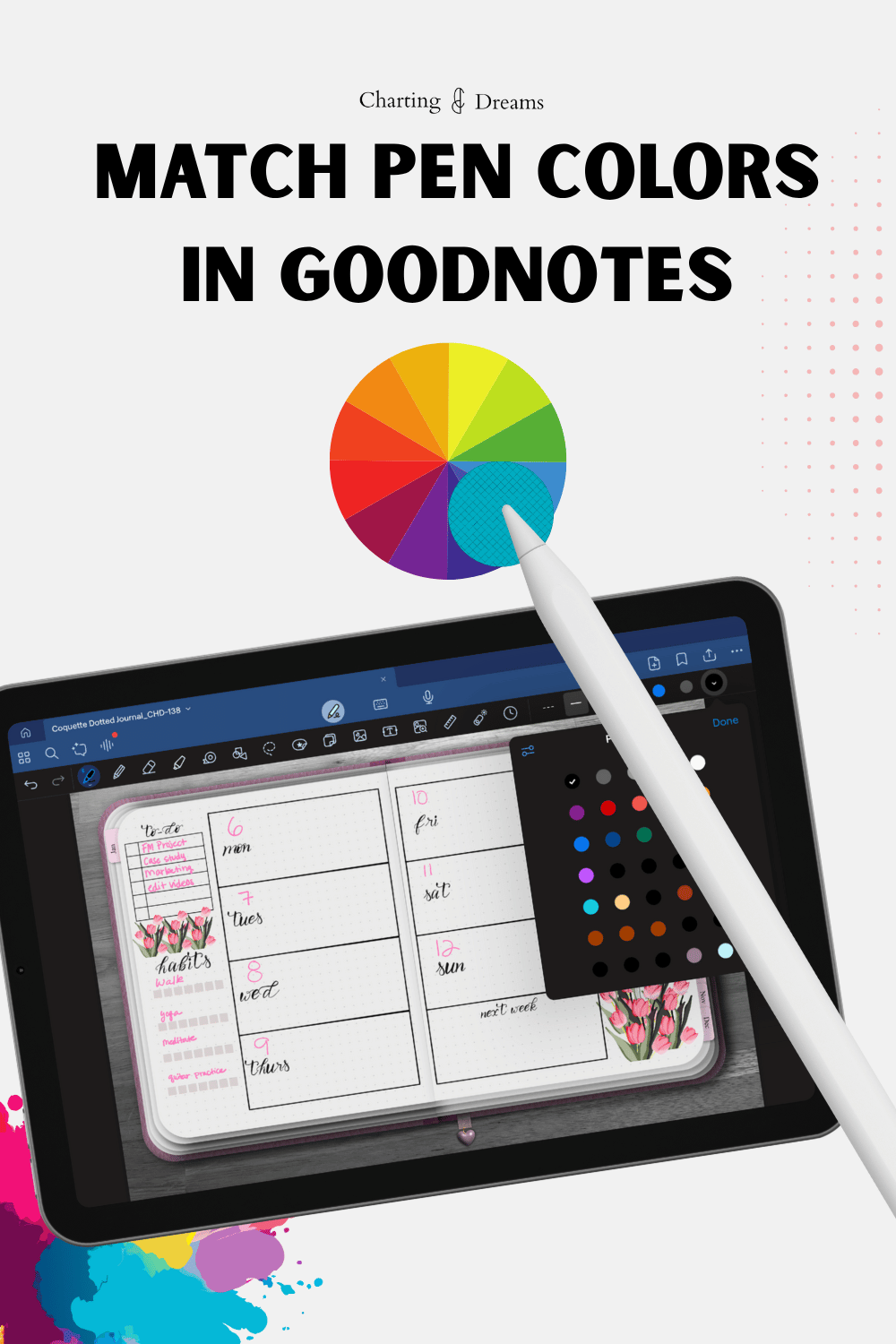
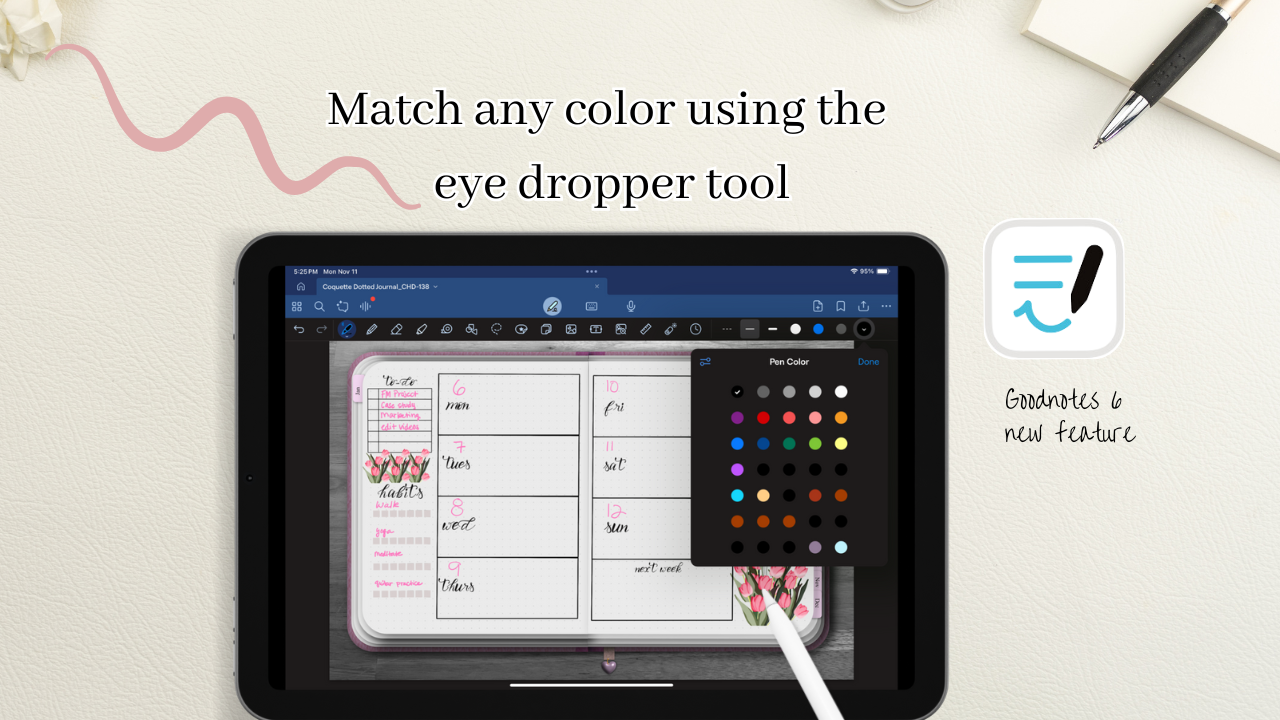
With Goodnotes 6 you can now easily match your pen colors to your Planner by using the color dropper tool. This features works with the pen, pencil, the highlighter tool and the tape tool. For this tutorial we’re going to demonstrate the process with using the Pen, however you can duplicate the same process with the pencil, highlighter and tape tool.
Step 1:
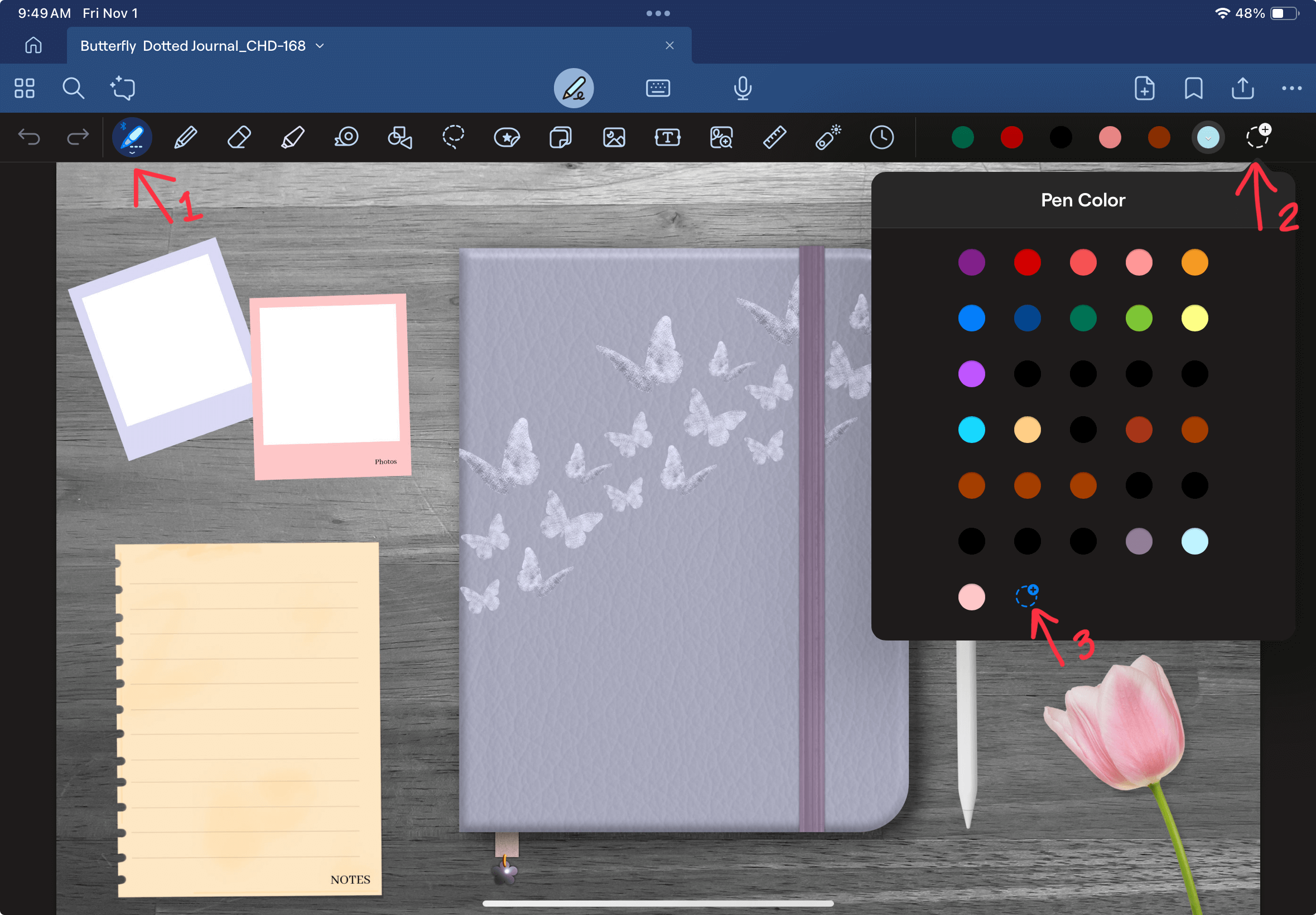
1.1 Tap on the Pen icon. Colors will then populate on the top right side of the toolbar.
1.2 Scroll the colors until you reach an empty dashes circle with a plus sign.
1.3 Another window with more colors will open. You’ll then scroll down until a blue dashed circle with a plus sign is visible.
Note: If you don’t have a white dashed circle like in example 1.2 then all your color slots are filled. Double click on any of your color slots and scroll down until you see the blue dashed circle like in example 1.3.
Step 2:
Once you select the blue dashed circle, a new window will populate and in the top right corner of this window there will be an eye dropper icon, click on this icon.

Step 3:
3.1 Once you select the eye dropper a circle with a grid will populate, this is your eye dropper color picker.
3.2 You can then drag the color picker to your desired color.


Step 4:
Once you chose your color a preview of the color you selected will be added to your colors. In order to add to officially add it to your colors click add to presets.

Step 5:
Select your newly added color from the colors window and test it out.


Conclusion:
Mastering the color picker or eyedropper tool is the easiest way to elevate your digital planning setup from standard notes to a beautifully customized, professional-grade layout. Eliminating harsh, clashing default pen colors creates a soothing, intentional workspace that makes you genuinely excited to open your iPad and track your daily habits every single day.
Test Your Palette on the Butterfly 5-in-1 Journal
The soft pink and purple pastel tones featured in this tutorial belong to our signature Butterfly 5-in-1 Digital Journal. This nature-inspired, simple layout provides the ultimate soothing backdrop to practice your new color-matching skills. Grab your copy today to begin organizing your thoughts, memory keeping, and bullet planning in one beautiful, uniform space.

A soft digital journal for capturing your thoughts, planning your life, and saving memories in one place. Designed for journaling, bullet planning, notes, and photo memory keeping in a simple organized system. Light pink and purple butterfly tones for a gentle, nature-inspired journaling style.
Watch the video tutorial below:
Save for later:

Streamline Your Digital Workflow
Now that your color scheme is perfectly synchronized, explore these step-by-step tutorials to further customize and build out your daily system:
Optimize Your Workspace: Organize your most-used features exactly where you need them with Your Toolbar.
Create Endless Pages: Never worry about cluttering your templates by learning How to Make Your Digital Journal Infinite.
Master the Basics: Move, resize, and modify your custom-colored text fields seamlessly in our Lasso Tool Complete Beginner Guide.