
Your Toolbar, Your Way: Making Goodnotes Work for Your Specific Workflow
Goodnotes becomes even more powerful when it’s customized to fit the way you think and work. This step-by-step tutorial walks you through setting up your toolbar so your most-used tools are always within reach, helping you journal, plan, or create with less friction. By tailoring Goodnotes to your specific workflow, you’ll spend less time adjusting settings—and more time actually using your digital notebook with ease.
Steps:
Click on the dots at the top of your screen

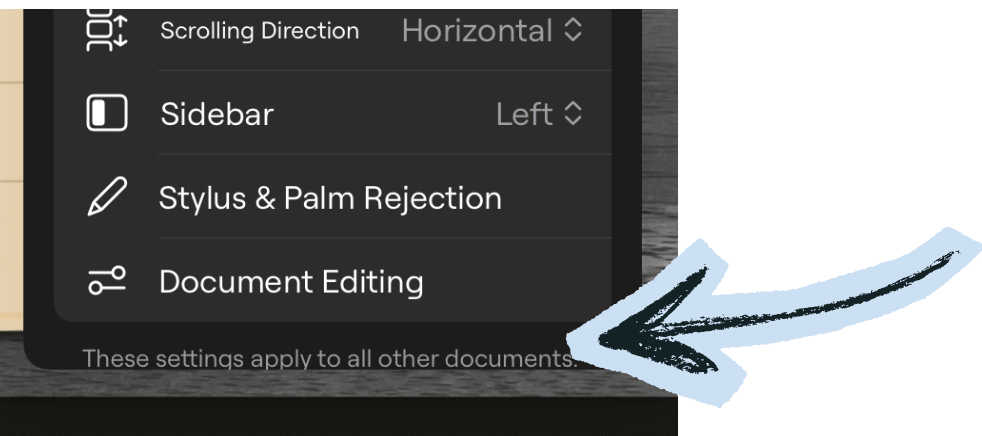
A window will pop up, scroll down to “Document editing”
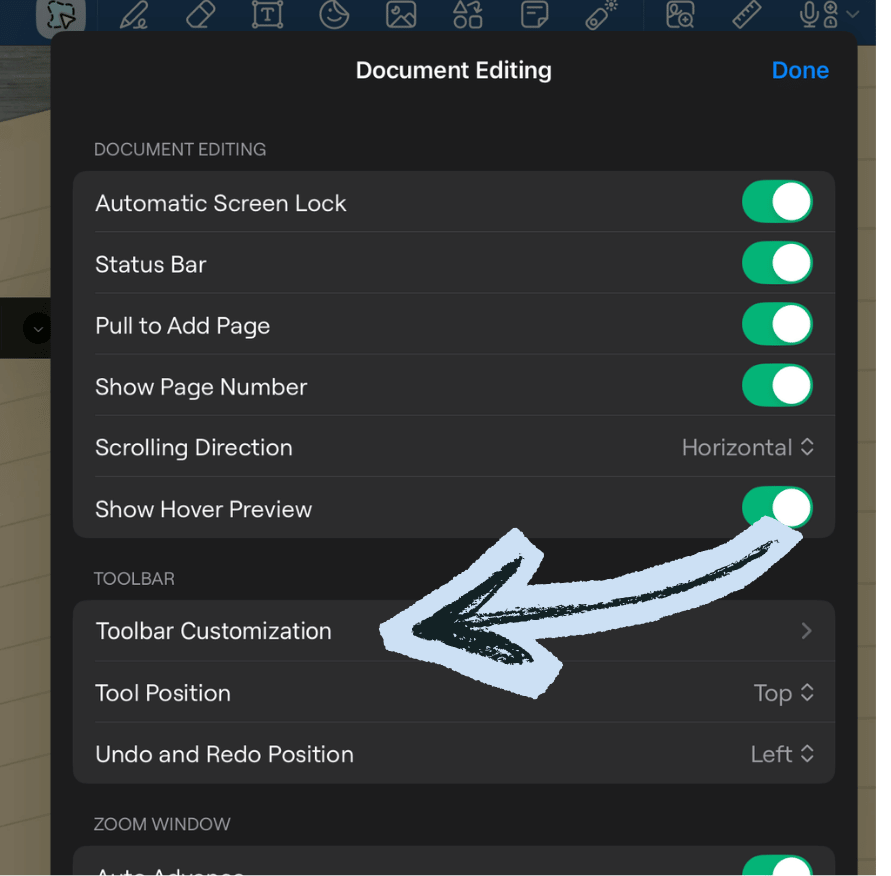
Another widnow will populate where you’ll click “Toolbar Customization”
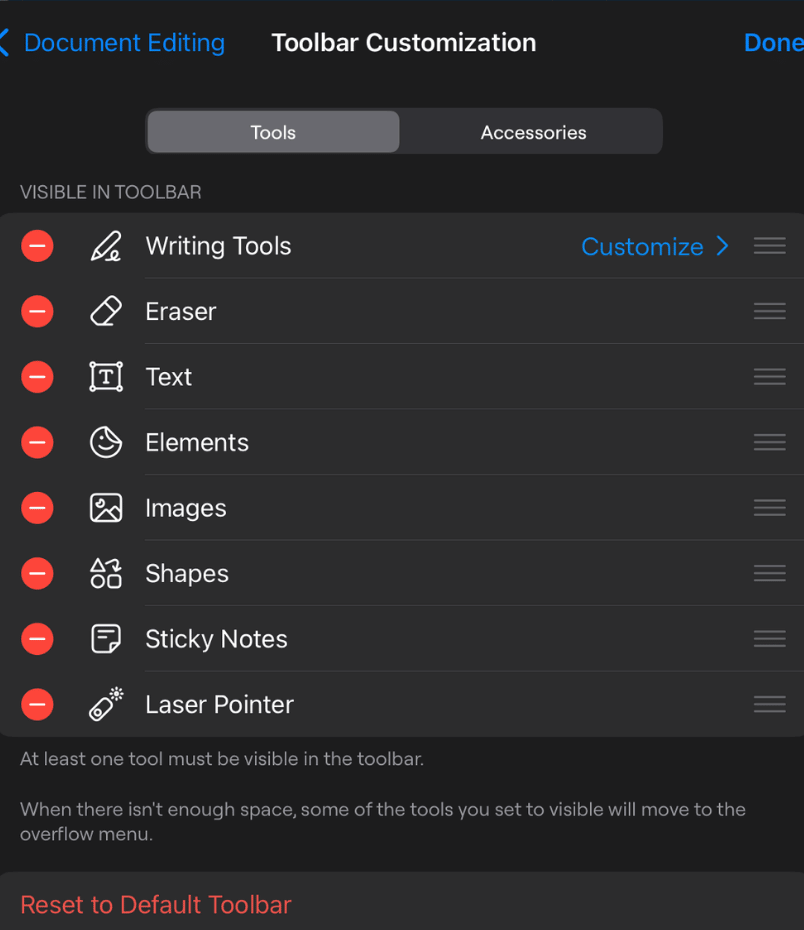
From there you can click on the red dots to remove or green dots to add different functions to your tool bar.
Conclusion:
An optimized toolbar transforms digital planning from an overwhelming tech experience into a seamless daily ritual. By removing tools you rarely use and placing your essential pen, eraser, and color pickers right at your fingertips, you eliminate workspace friction. A clean workspace allows you to spend less time clicking buttons and more time actively focus-mapping your daily goals.
Now that your physical layout panel is completely streamlined, you can master the rest of your app navigation by discovering how to add hyperlinks to any Goodnotes document to jump between pages instantly. You can combine those custom tabs with our tutorial on how to use elements in Goodnotes to reuse planner layouts so you never have to waste time rebuilding your favorite spreads. Best of all, once you unlock these shortcuts, you can scale your layouts infinitely because learning how to make your digital journal infinite ensures you never run out of room for your ideas.
Practice on Our Signature 5-in-1 Digital Journals
An optimized layout interface only shines when it is paired with a matching planner ecosystem. Test out your custom tool adjustments on one of our premium 5-in-1 Digital Journals. Designed with intuitive navigation tabs and clean, hyper-functional pages, it serves as the ultimate professional canvas to elevate your daily organization habits.
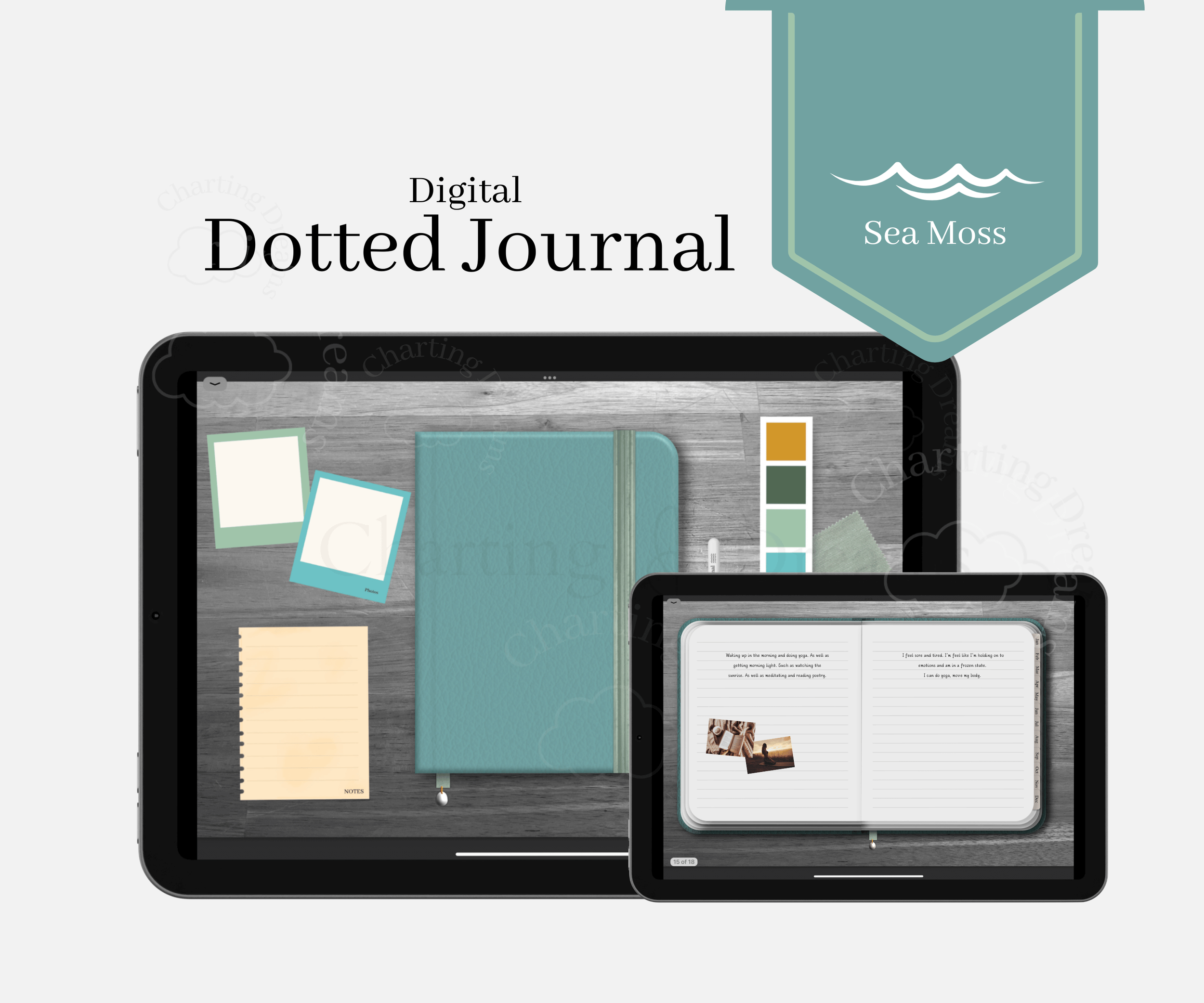
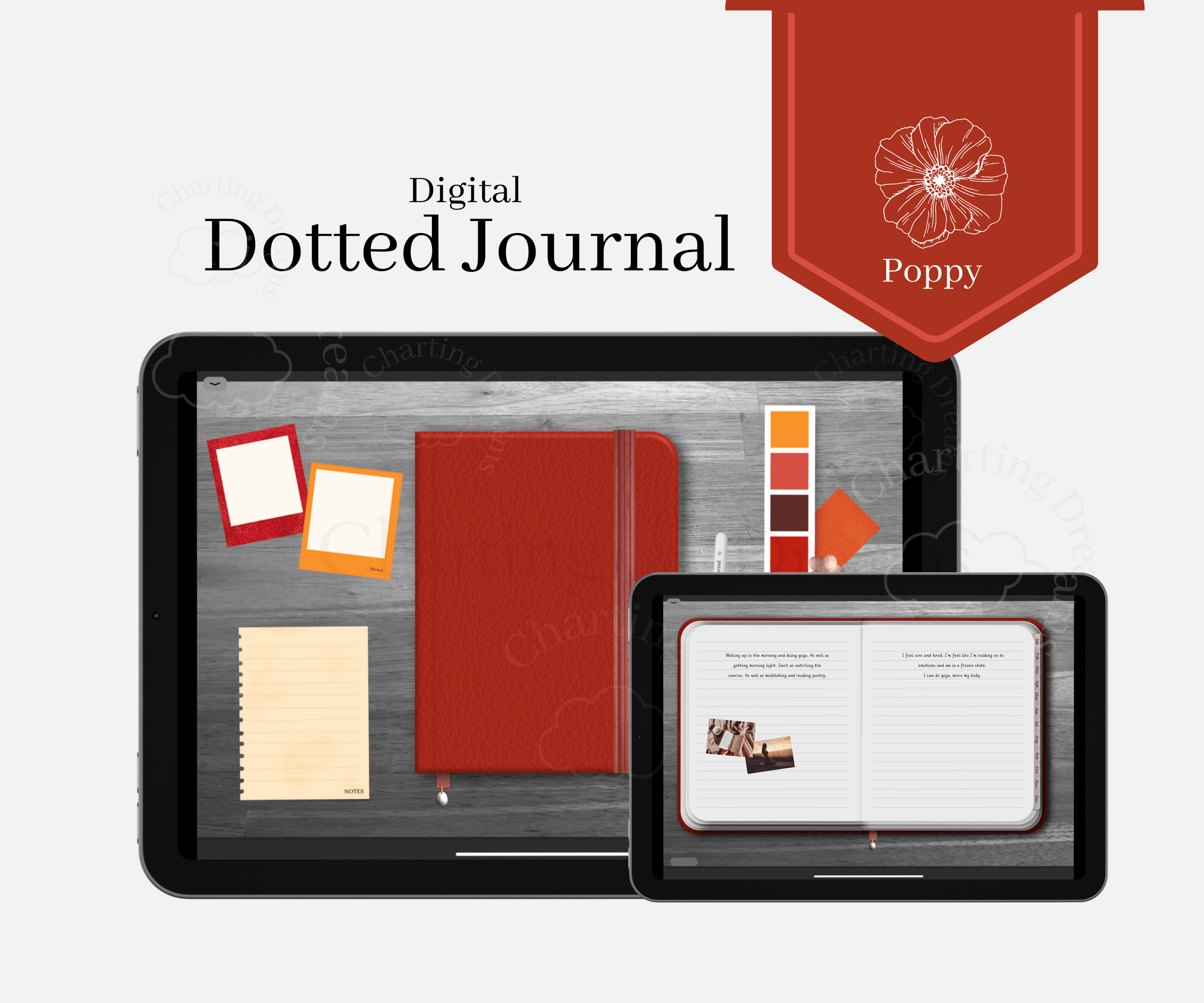


A bright digital journal for planning your day, organizing thoughts, and capturing memories in one uplifting space. Designed for bullet journaling, notes, vision boards, and photo memory keeping in a simple all-in-one system. Soft sunny yellow tones for cheerful, joyful journaling and everyday planning.