How to Use Elements in Goodnotes to Reuse Planner Layouts
The best part of digital planning is being able to streamline creating planner spreads. By using the elements function in Goodnotes you can create a weekly spread once and then add it to an element collection. That way all you have to do is place the same spread for the following weeks without having to re-do it. Allowing you to save time and go on to create your next spread.
Step 1:
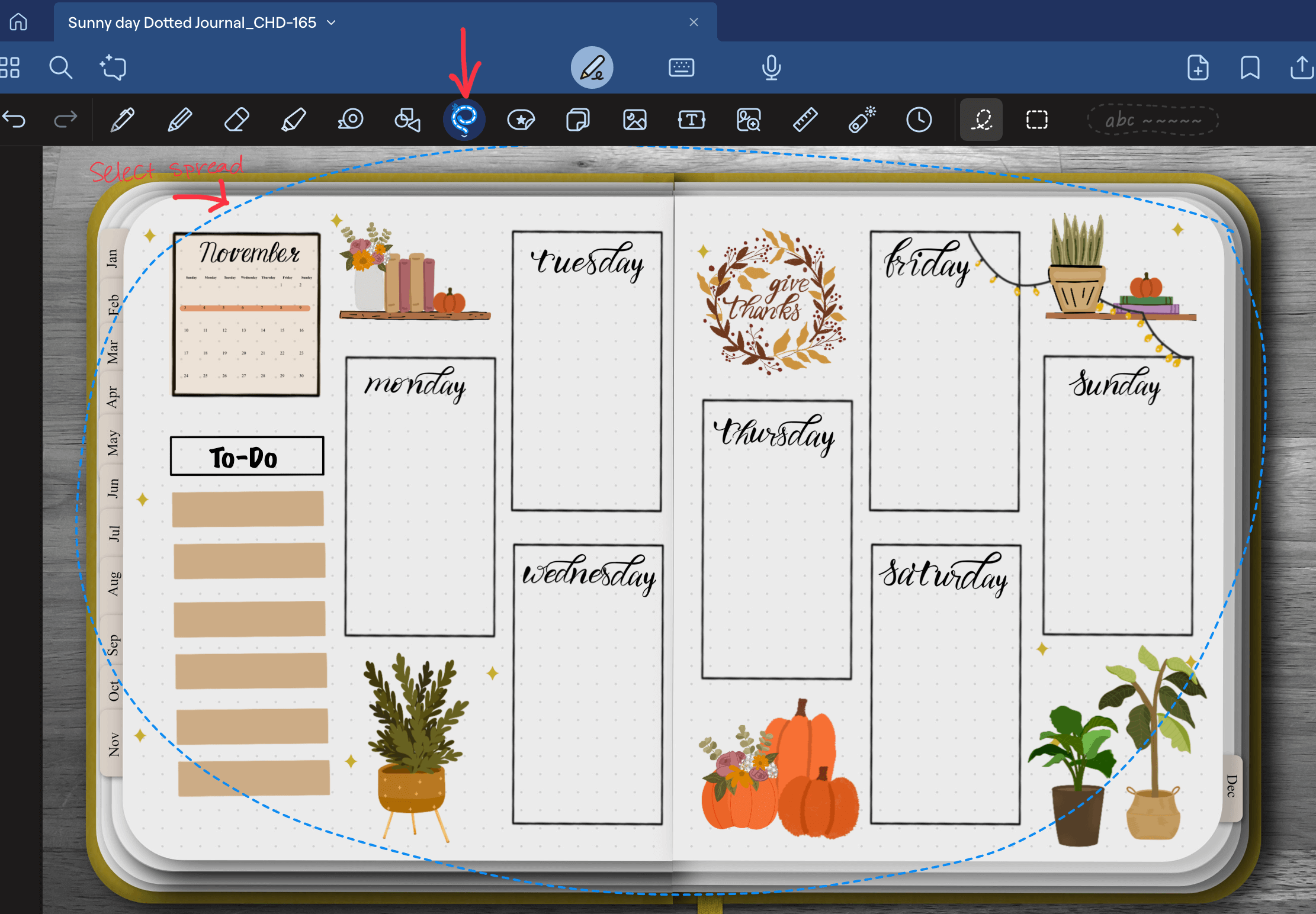
Create your weekly spread or any spread you want to re-use. Select the lasso tool and circle your entire spread.
Step 2:
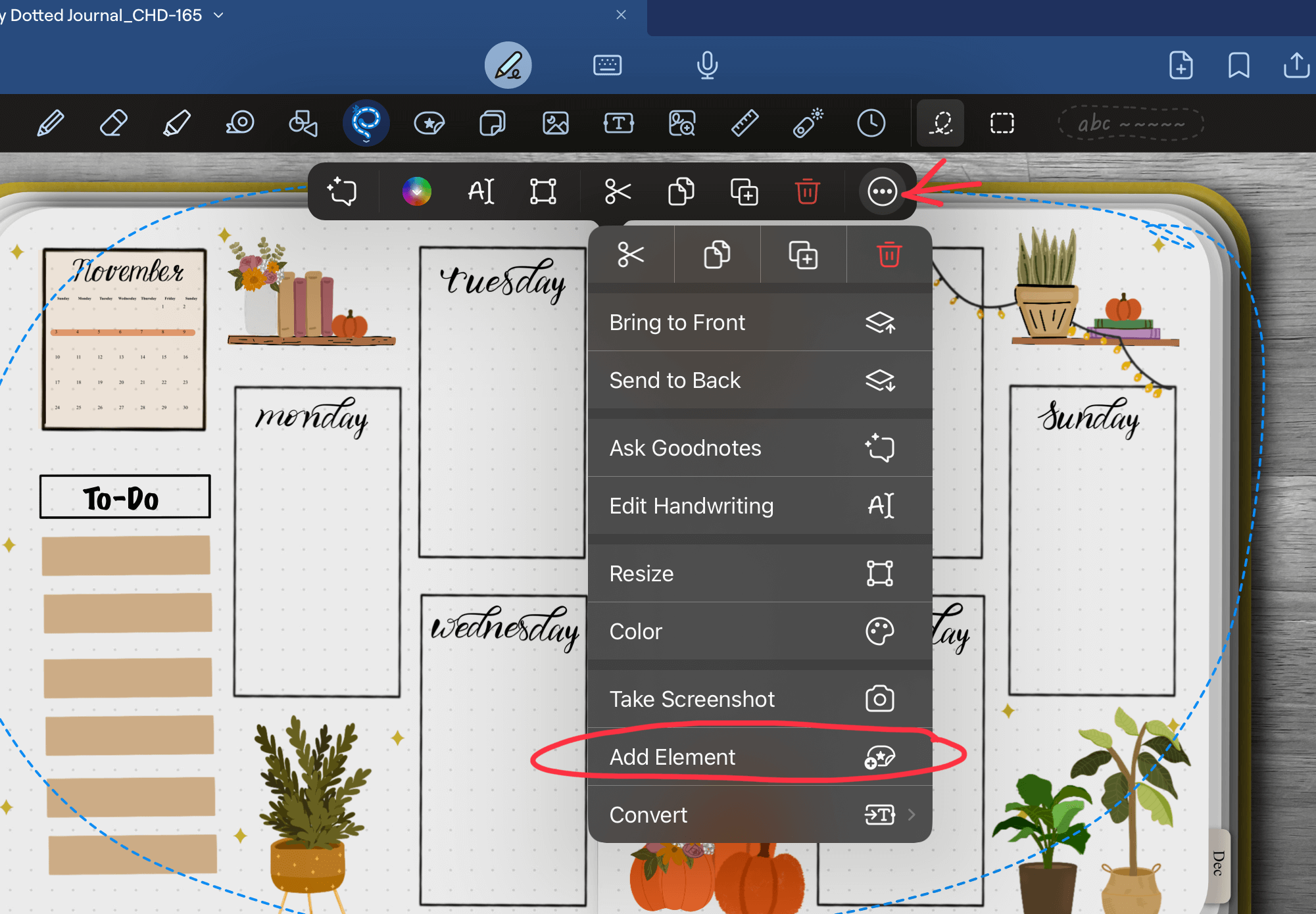
Click on the selected area and press the 3 dots in right corner of the menu, then click Add element.
Step 3:
The element collection menu will open where you can add to an existing collection or create a new collection.


Conclusion:
The Elements tool completely changes the game for digital planning by removing the tedious, repetitive work of rebuilding your favorite layouts from scratch. Instead of wasting time drawing the same grids and boxes every single week, you can save your signature designs with a single tap. This allows you to build beautiful, functional pages in seconds and focus your energy on what matters most: mapping out your goals and crushing your daily routines.
Build Your Dream Layout in Seconds
Want to skip the design phase entirely and start with an aesthetic, joyful setup?
Grab our cheerful, yellow-toned Sunny Day 5-in-1 Digital Journal. Pair it perfectly with the Fall & Halloween Digital Sticker Set, which features pre-created weekly layouts designed specifically to save you time. Save them directly to your Elements collection today to enjoy stress-free, festive planning year-round!
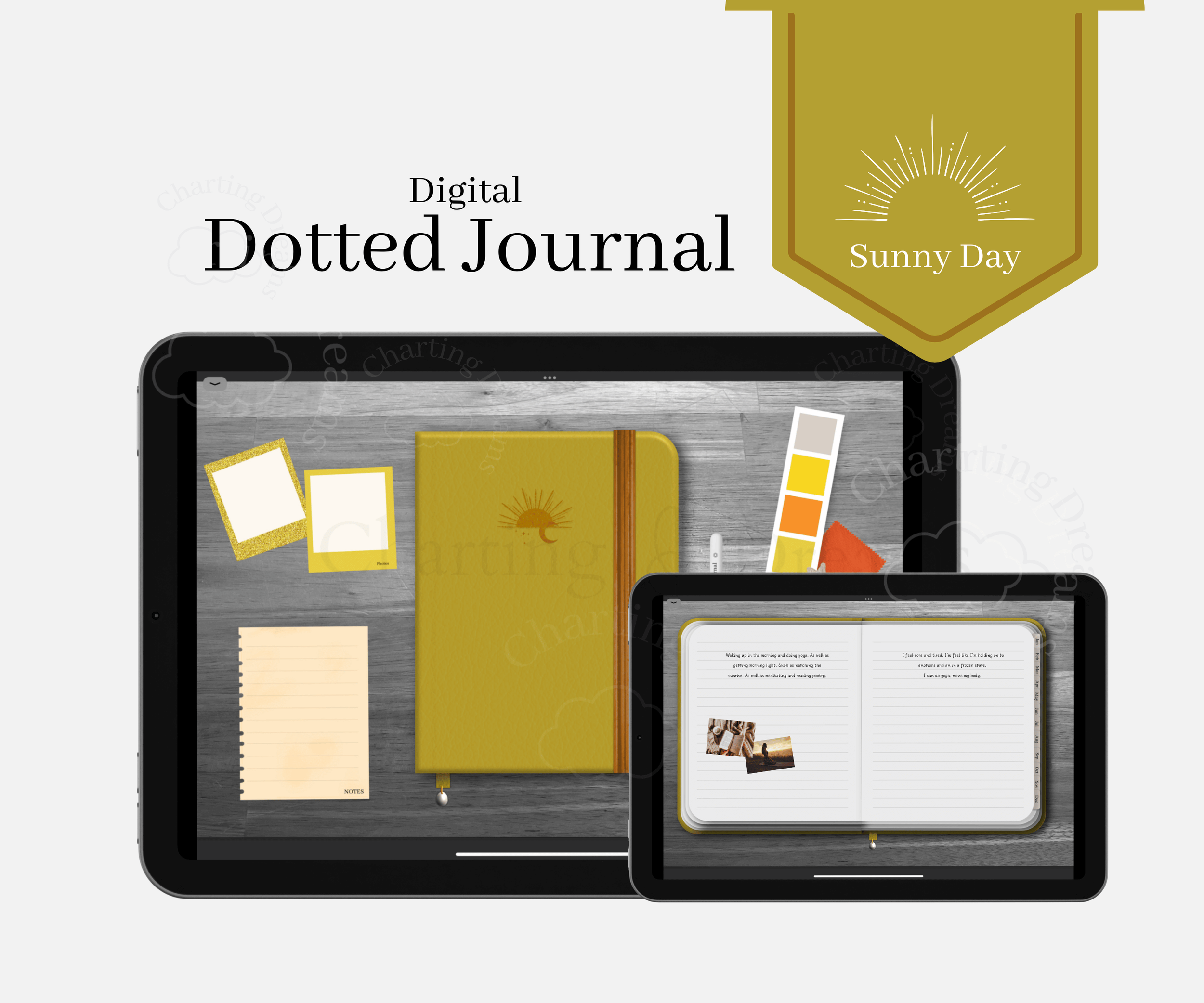
A bright digital journal for planning your day, organizing thoughts, and capturing memories in one uplifting space. Designed for bullet journaling, notes, vision boards, and photo memory keeping in a simple all-in-one system. Soft sunny yellow tones for cheerful, joyful journaling and everyday planning.

Get into the Autumn and spooky spirit with this pack designed for the new Bullet journal user. Comes with pre-created weekly spreads.
So you can have a festive October planner spread without the stress.
Watch the video tutorial:

Master Advanced Goodnotes Features
Ready to fully customize your digital setup and build a high-performance workspace? Dive into our step-by-step guides to unlock the full potential of your iPad:
Optimize Your Workspace: Arrange your digital workspace for peak efficiency with Your Toolbar, Your Way: Making Goodnotes Work for Your Workflow.
Create Endless Pages: Never worry about running out of room on your favorite spreads by learning Never Run Out of Space: How to Make Your Digital Journal Infinite.
Build Smart Navigation: Connect your custom element pages together effortlessly with How to Add Hyperlinks to Any Goodnotes Document.